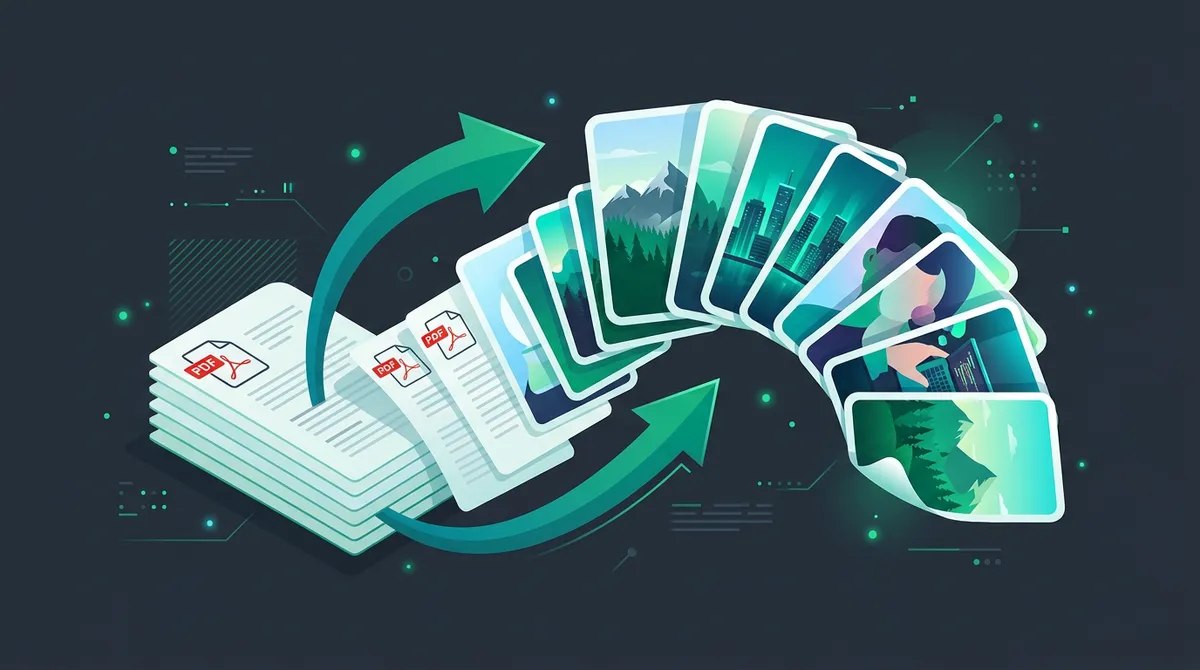
Why won't a PDF open when you want to send it as an image?
If you've ever tried sharing a presentation, invoice or set of notes in a chat, an Instagram story or inside a web page, you know: a PDF is not an image. The recipient needs a separate app to open it, and social platforms either reject it or show it as a useless file icon.
The solution is simple: turn each page of the PDF into a separate JPG. This guide shows you when this is the right choice, what to watch for, and how to do it in seconds — while your files stay safe on your own machine.
When is PDF to JPG conversion useful?
- Sharing in chats or Messenger: JPG displays instantly on every platform, while a PDF arrives as a boring file icon.
- Social media (Instagram, Facebook, LinkedIn): easy to upload as an image, and it looks far better in the feed.
- Embedding in websites or presentations: a JPG works everywhere, from the HTML <img> tag to PowerPoint.
- Printing: many print services accept only JPG/PNG, not PDF.
- Visual archiving: a page stored as an image is easier to search and tag.
The 3 most common methods — and which to pick
1. Online converter (recommended for most users)
The simplest route is the PDF to JPG converter — upload your PDF and automatically get every page as a separate image. No installation, no account, no watermarks.
Our converter goes one step further: the conversion runs in your browser, not on a remote server. Not a single byte leaves your machine — which matters greatly for privacy when you're processing contracts, invoices or personal documents.
2. Built-in Windows/Mac tools (for a single page)
If you only need to save one page, on Windows you can use the Snipping Tool (or another screenshot utility), and on Mac the Preview app's Export function.
The drawback: it's a one-page-at-a-time slog, you have to change the format manually every time, and depending on the system the resolution is often lower too.
3. Command-line tools (for technical users)
The ImageMagick + Ghostscript combo, or pdftoppm (Poppler), renders reliably from code. Great for bulk, automated conversion — but for the average user it's overkill to install and configure.
Step by step: PDF to JPG in your browser
- Open the PDF to JPG converter.
- Drop your PDF into the upload area (or click Browse).
- Wait while every page appears as its own card — for long documents you can watch pages load in real time.
- Fine-tune if you like: use the quality slider (higher = better quality but bigger file), resize (e.g. scale to 50%), or even add a watermark.
- Click Download. With multiple pages all the JPGs arrive in a single ZIP with clean file names (contract-1.jpg, contract-2.jpg…).
What will the image quality be?
Our rendering adapts to the resolution: for standard A4 pages we render at roughly 1.5× zoom, so text stays sharp while file size remains reasonable. If you specifically want text to read as crisply as possible (e.g. a scanned note), also consider PDF to PNG conversion — PNG is a lossless format and preserves letter edges even more precisely.
Tip: if the images are destined for a website, convert them afterwards to JPG to WebP — you'll get files 25–35% smaller at the same visual quality!
Privacy: why does it matter where the conversion runs?
Most online “PDF to JPG” sites upload your PDF to their own server, process it, and only then return the images. This can be a problem for two reasons:
- Confidential documents: contracts, medical records, financial statements — their content ends up on someone else's server, and you can never be sure who has access or how long it's stored.
- Strict file size limits: many services refuse PDFs larger than 5–10 MB from free users.
With in-browser conversion (as with Image Converter), the file never leaves your computer. This difference becomes critical the moment your PDF contains anything you wouldn't trust to a stranger.
Frequently asked questions (FAQ)
Is the conversion free?
Yes, completely. No registration, no watermarks on the output, and no daily limit for normal use.
How many pages can I convert at once?
Free tier: up to 50 pages per PDF. Larger documents are best split into parts.
Does my PDF get uploaded to your servers?
No. The conversion runs in your browser — our system never sends a single byte from your machine.
Can I upload multiple PDFs at once?
Yes — the batch feature accepts up to 10 files at a time. Each PDF counts as one file, regardless of its page count.
What quality will the JPG have?
Sharp — we render A4 pages at roughly 1.5× resolution. With the quality slider you control the balance between file size and visual quality yourself.
Related guides: Which format to choose: WebP vs JPG vs PNG · Reduce image file size without quality loss