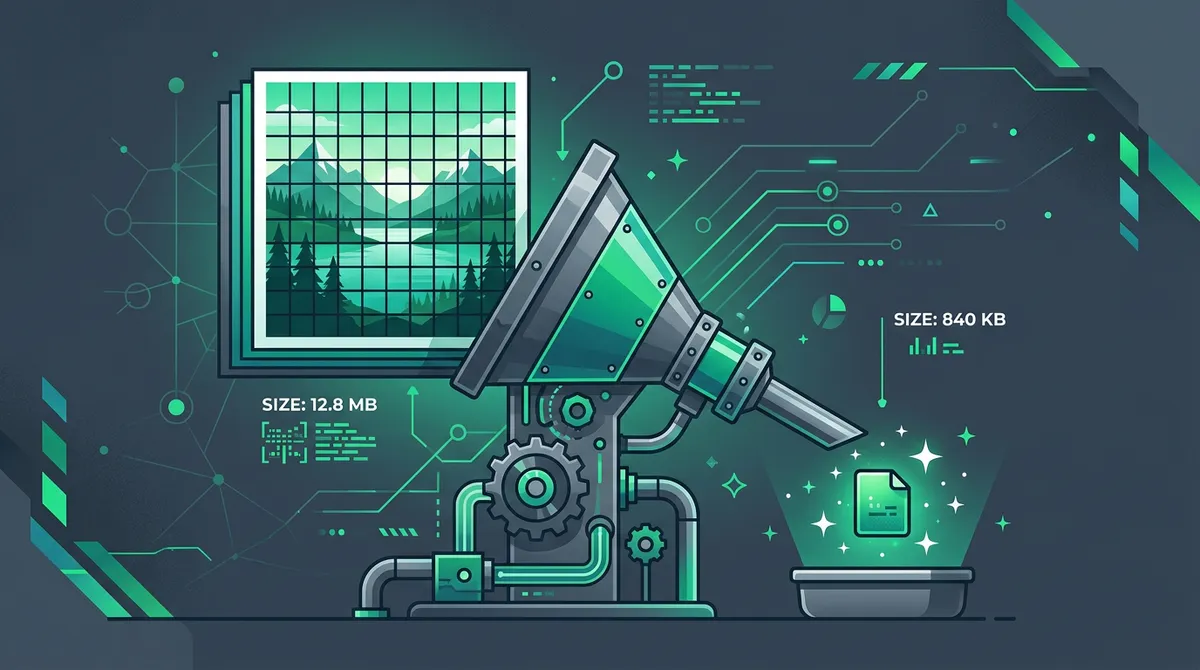
What is image compression and how does it work in practice?
Digital photos carry a huge amount of hidden data: alongside the actual pixels there are camera settings (EXIF data: shutter speed, GPS coordinates, camera model), color profiles and redundant metadata. On top of that, the human eye is far more sensitive to changes in brightness (luminance) than to subtle color differences (chrominance).
Compression algorithms exploit exactly this biological quirk: they discard information your eye wouldn't notice in normal viewing, while the file size shrinks to a fraction.
The 3 golden rules of size reduction
1. Optimize dimensions (resolution) to actual needs
The biggest size savings come from removing unnecessary pixels. A 48-megapixel (8000x6000 px) photo from a modern smartphone is great for a giant poster but completely unnecessary on a website or in an email attachment.
A simple resize to 1920 px (Full HD) wide cuts the file by more than 80% before you even apply any compression!
2. Set the “sweet spot” quality level (75% – 85%)
For JPG and WebP, pulling the compression slider below 100% works the magic:
- 100% quality: not recommended. Huge file size for minimal extra information.
- 80% – 85% (recommended): the perfect balance! File size drops to half or a third, and the photo is virtually indistinguishable from the original on a normal monitor or phone.
- Below 70%: text and fine gradients can start showing slight blockiness — best reserved for web thumbnails.
3. Switch to a modern format (WebP)
If you convert an older PNG photo or a traditional JPG to WebP with our JPG to WebP or PNG to WebP tools, you save on average an additional 30–40% of storage at the same visual quality.
Practical steps with Image Converter
- Open the Image Converter homepage.
- Drop in the images you want to compress (multiple at once is fine).
- Click the pencil icon to open the built-in editor:
- Set your desired maximum width (e.g. 1920 px for Full HD).
- Drag the quality slider to 80%.
- Choose WebP or JPG as the target format.
- Download the finished, dramatically smaller files with a single click!
Why does this matter for privacy?
Most online image compressors upload your photos to a remote server where they get processed — and often stored for days. Image Converter uses cutting-edge HTML5 and WebAssembly technology: images are processed exclusively in your own computer's memory. Nothing is sent to any server, so your private family photos, documents and personal data stay 100% with you.