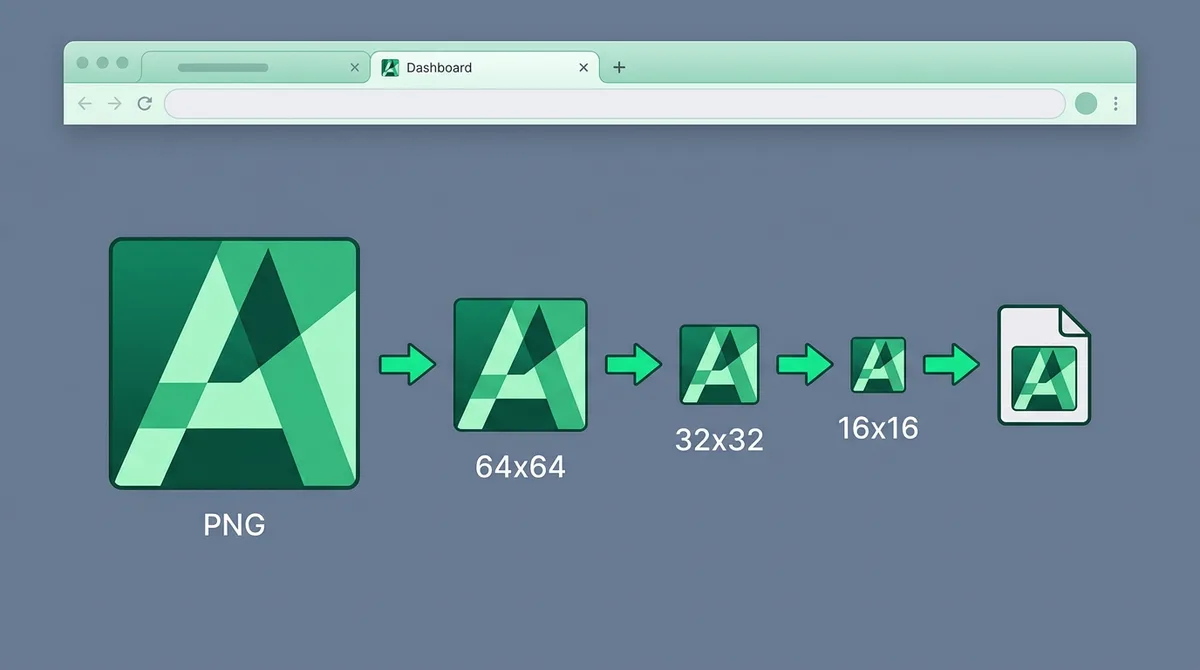
Why does the favicon matter?
Your favicon is your website's “face”: it appears on browser tabs, in bookmarks, on mobile home screens, and next to Google search results. A missing or pixelated favicon instantly creates a “hobby project” impression — while a crisp, sharp icon signals professionalism and measurably improves click-through rates in search.
What exactly is an ICO file?
ICO is not an ordinary image but a container format: a single file holds multiple versions of the icon at different sizes (16×16, 32×32, 48×48 and so on). The browser or operating system always picks the most appropriate (sharpest) one.
This is exactly why your converter must embed multiple sizes into the file. Most free tools save only one size, which makes the icon look blurry or blocky at certain resolutions.
Step by step: creating your favicon
- Prepare the source image in a square ratio: ideally use a 256×256 or 512×512 pixel PNG with a transparent background. PNG is the best input format because it's lossless.
- Open the PNG to ICO converter.
- Drop in your image: the converter automatically resizes it to the standard favicon sizes.
- Download the finished
.icofile and rename it tofavicon.ico. - Copy the file into your website's root directory and reference it in the
<head>of your HTML:<link rel="icon" href="/favicon.ico" sizes="any" /> - Don't forget Apple devices! Also add a 180×180 pixel PNG (apple-touch-icon), because iOS doesn't use the ICO format:
<link rel="apple-touch-icon" href="/apple-touch-icon.png" />
Design tips for the perfect favicon
- Simple shape: at 16×16 pixels, a complex logo becomes an unrecognizable blob. A good favicon contains at most 1–2 clean elements or letters.
- Avoid fine details: 1-pixel-thin lines vanish entirely at this size. Use thick outlines and strong contrast.
- Transparent background: round or gently rounded shapes look far more modern; a square that fills the entire canvas reads as dated (2005-era) design.
- Dark and light mode compatibility: a well-designed icon with a transparent background looks great in both light and dark themes.
Which sizes belong inside an ICO?
- Browser icon (favicon): 16×16 (and 32×32 for Retina/high-DPI screens)
- Bookmarks: 32×32
- Windows icons: 32×32, 48×48
- Android/Chrome web app icon: 192×192 (this needs a separate PNG file)
That's why it's worth including the 16, 32, 48 and 64 pixel sizes inside your ICO — our tool does all of that in a single conversion.
FAQ
Can I make an ICO from a JPG?
Yes, it's possible — but JPG doesn't support transparency (the background stays white or a solid color block). It's better to convert the JPG to PNG first, remove the background, and then create the ICO.
Is .ico the same as .icns?
No. .ico is the standard format for Windows and the web, while .icns is the macOS icon format. If you need an icon from an .icns file, convert it to PNG first, then generate the ICO from that.
Can an ICO contain just one size?
Technically yes, but it's not recommended. If the browser has to resize the icon itself, the result is often blurry and pixelated. Embedding several sizes (e.g. 16, 32, 48 px) is the safer, more professional solution.
If your finished ICO needs to go back into a raster format — for example for editing — the ICO to PNG converter is there for you.