Has this ever happened to you?
You download an image from a website only to discover it's a .webp file your software can't open? Or this one: you need to collect images from many sites (for a presentation, an article, a design job), and every time it's the same pointless loop: download → open an online converter → upload → convert → download → delete the original file.
We built the Image Converter Chrome extension to free you from that loop — and now we'll show you what it can do.
What can the extension do?
1. Right click → convert → download, right on the web page
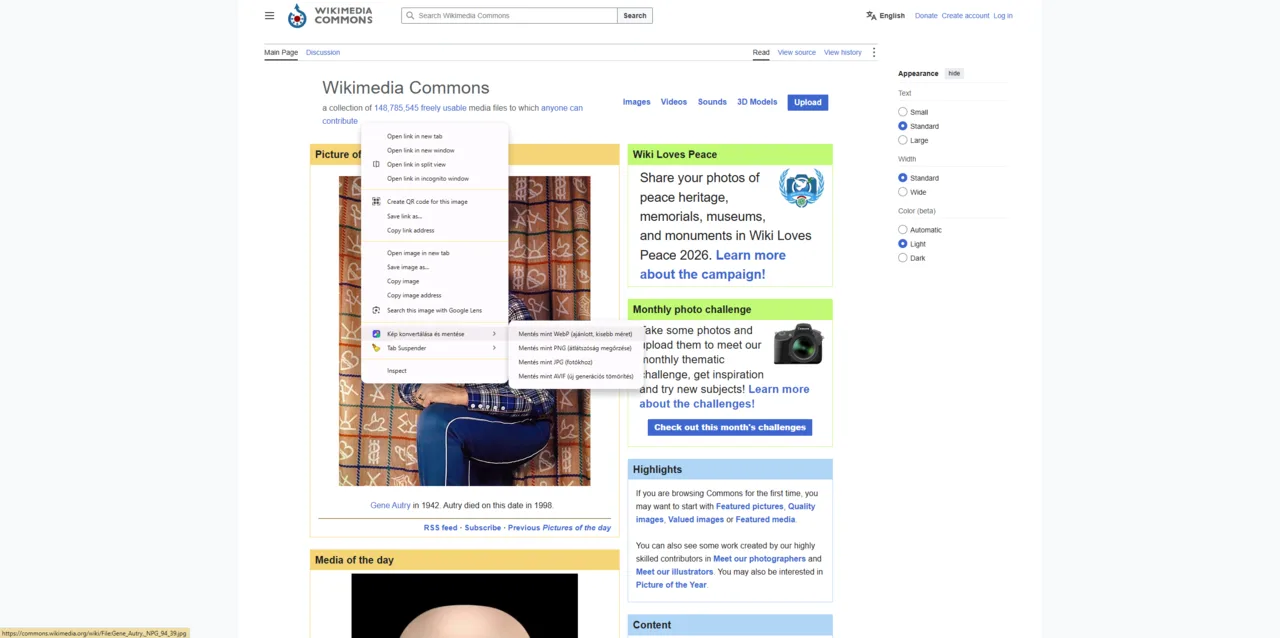
On any website, right-clicking an image adds a “Convert image and save” entry to the menu, with the target formats beneath it:
- Save as WebP — the smallest file size; ideal when you need to save space.
- Save as PNG — when you need a transparent background (logos, icons).
- Save as JPG — for photos, the most universally usable format.
One click, and the image lands in your downloads folder in the requested format — under a sensible, meaningful name (the file name is generated from the page URL, not a random character string).
2. Drag-and-drop converter behind the extension icon
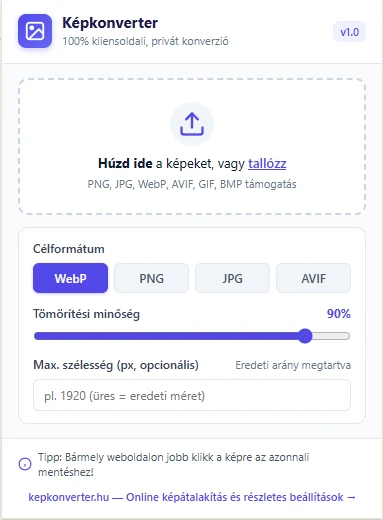
Besides the right-click menu, clicking the extension icon in the toolbar opens a mini converter where you can drag (or browse for) images too. You can pick from WebP, PNG, JPG and AVIF — and instantly see on screen how much space each option saves.
What inputs are supported? PNG, JPG, WebP, AVIF, GIF, BMP — practically anything your browser can display.
3. Everything happens in the browser — no server
The same rule applies as on the website: conversion runs on your machine. With right-click download the image never touches any server — it is transformed in the browser's memory and saved straight to disk. No uploading, no waiting, no wasted bandwidth.
4. Minimal permissions, maximum privacy
Built to the Manifest V3 standard, the extension requests only three permissions:
- contextMenus — so the right-click menu can appear.
- downloads — so it can save the converted file.
- activeTab — so it can process the image you clicked on.
No background content scanning, no access to browsing history, no data collection about the image itself. Not a single piece of data leaves your machine; the converted file goes straight into your own folder.
When is it worth using?
- WebP headaches: many sites now serve .webp files that older programs can't open. Right click → “Save as JPG”, done.
- Collecting logos and icons: save transparent-background assets as PNG so there's no black box behind them.
- Photo albums and presentations: quickly convert images found online into a single consistent format.
- Stores and SEO: if you save images for analysis or competitor research, WebP gives you the smallest files.
Installation — 30 seconds
- Open the Chrome Web Store listing.
- Click Add to Chrome.
- In the popup, choose Add extension.
- Done! The right-click menu works on every site immediately, and the mini converter is one click away via the icon in your browser's top-right corner.
Free, without registration or ads — it works on exactly the same principle as the web version.
Frequently asked questions (FAQ)
Is the extension free?
Yes, completely. No account, no trial period, no watermarks on the output images.
Does conversion work in the other direction too (e.g. WebP → PNG)?
Yes! The right-click menu offers three target formats (WebP, PNG, JPG), the mini converter four (WebP, PNG, JPG, AVIF). Any input format is fine — turn WebP into PNG, JPG into WebP, however you like.
Which browsers does it work in?
Google Chrome (Windows, Mac, Linux). In Chromium-based browsers — Edge, Opera, Brave — it can generally also be installed without trouble from the Chrome Web Store.
Does the extension send my images anywhere?
No. Conversion runs 100% in your browser, and saving happens to your own machine. No middleman server, no uploads.
Why does it sometimes ask permission for downloads?
The browser may ask the first time whether you allow downloading multiple files at once (if you convert several images in one go). That's a built-in Chrome security setting, not the extension requesting extra permissions.
Try it yourself: install the Image Converter extension, or use the web converter — both free, instant, on your own machine.